> ## Documentation Index
> Fetch the complete documentation index at: https://koreai-ai-for-work-dev.mintlify.app/llms.txt
> Use this file to discover all available pages before exploring further.
# Adherence Heatmap
The Adherence Heatmap lets supervisors track how consistently agents meet evaluation metrics over time. It highlights non-compliant interactions and, shows the date range, total interactions, adhered interactions, and adherence percentage. The system applies duration threshold filters configured at the evaluation form or scorecard level and evaluates only newly ingested contacts.
Using date range, agent, and language filters, supervisors can:
* Identify agents with adherence issues.
* Monitor compliance across evaluation forms, metrics, or queues.
* Make data-driven coaching decisions.
Only evaluated interactions are included. Contacts marked Below Threshold or Duration Unavailable are excluded unless manually evaluated.
To use this feature, enable **Auto QA** in **Settings**.
Navigate to **Quality AI** > **ANALYZE** > **Adherence Heatmap**.
 Use the dropdown to select an evaluation form and visualize its adherence metrics in the heatmap.
***
## Handling Flagged Interactions
The Adherence Heatmap handles flagged interactions as follows:
* Excludes Below Threshold and Duration Unavailable interactions from adherence calculations.
* Includes flagged contacts in heatmap metrics when manually evaluated.
* A contact can fall Below Threshold for one scorecard but still meet evaluation criteria for another.
* Duration checks don't block ingestion, transcript storage, or Conversation Mining.
* Flagged contacts remain available in Conversation Mining via the Duration Status filter: All, Evaluated Only, Below Threshold, Duration Unavailable.
* Excludes flagged contacts from dashboard aggregates unless manually evaluated.
* Preserves filters and drill‑down behavior.
* Shows the exclusion reason in interaction details.
## Heatmap Visualization
The heatmap displays adherence percentages over time for the selected metric, date range, agent, and evaluation form.
### Data Eligibility
Only valid interactions are considered across the heatmap, tooltips, drill-downs, and dashboards.
**Included**:
* Evaluated interactions
* Manually evaluated Below Threshold contacts
**Excluded**:
* Below Threshold
* Duration Unavailable
* Non-applicable metrics
Only interactions with Duration Status = Evaluated are included unless you manually audit them.
### Metric Applicability
| Metric Type | When It Applies |
| ------------------------- | --------------------------------------------------- |
| **Static** (by question) | Applies to all evaluated interactions. |
| **Dynamic** (by question) | Applies only when the relevant trigger is detected. |
Excludes Below Threshold and Duration Unavailable contacts.
### Adherence Calculation
The system calculates adherence using eligible evaluated interactions, based on the selected evaluation form, agent, and date range.
**Formula**
**Adherence % = Adhered eligible evaluated interactions ÷ Applicable eligible evaluated interactions**
### Color Coding
Each heatmap tile is color-coded by adherence percentage:
| Color | Meaning |
| -------- | --------------------------------------------------- |
| Red | 0% adherence |
| Green | 100% adherence |
| Gradient | Transitions in 10% increments between red and green |
| Gray | No applicable evaluated interactions |
### Fatal Errors and Failed Interactions
| Category | Description |
| ----------------------- | ------------------------------------------------------------------------------------------------------------------------------------------------------------------------------------------------------------------------------------------------------- |
| **Failed Interactions** | Interactions that don't meet quality or compliance thresholds (for example, missed greetings, incorrect information, or compliance breaches). |
| **Fatal Errors** | Critical issues that automatically set adherence to 0% when a fatal error occurs (red). |
| **Usage for Coaching** | Supervisors and agents use fatal error flags, heatmaps, and question-level feedback for self-assessment and coaching preparation. See [AI-Assisted Manual Audit](/ai-for-service/quality-ai/analyze/ai-assisted-manual-audit) for additional workflows. |
### Hover Tooltip
Hover over a heatmap tile to view the date range, total evaluated interactions, adhered interactions, and adherence percentage.
The tooltip displays only evaluated interactions. Flagged contacts are excluded unless manually evaluated. If no applicable evaluated interactions exist, the tooltip shows nothing.
Use the dropdown to select an evaluation form and visualize its adherence metrics in the heatmap.
***
## Handling Flagged Interactions
The Adherence Heatmap handles flagged interactions as follows:
* Excludes Below Threshold and Duration Unavailable interactions from adherence calculations.
* Includes flagged contacts in heatmap metrics when manually evaluated.
* A contact can fall Below Threshold for one scorecard but still meet evaluation criteria for another.
* Duration checks don't block ingestion, transcript storage, or Conversation Mining.
* Flagged contacts remain available in Conversation Mining via the Duration Status filter: All, Evaluated Only, Below Threshold, Duration Unavailable.
* Excludes flagged contacts from dashboard aggregates unless manually evaluated.
* Preserves filters and drill‑down behavior.
* Shows the exclusion reason in interaction details.
## Heatmap Visualization
The heatmap displays adherence percentages over time for the selected metric, date range, agent, and evaluation form.
### Data Eligibility
Only valid interactions are considered across the heatmap, tooltips, drill-downs, and dashboards.
**Included**:
* Evaluated interactions
* Manually evaluated Below Threshold contacts
**Excluded**:
* Below Threshold
* Duration Unavailable
* Non-applicable metrics
Only interactions with Duration Status = Evaluated are included unless you manually audit them.
### Metric Applicability
| Metric Type | When It Applies |
| ------------------------- | --------------------------------------------------- |
| **Static** (by question) | Applies to all evaluated interactions. |
| **Dynamic** (by question) | Applies only when the relevant trigger is detected. |
Excludes Below Threshold and Duration Unavailable contacts.
### Adherence Calculation
The system calculates adherence using eligible evaluated interactions, based on the selected evaluation form, agent, and date range.
**Formula**
**Adherence % = Adhered eligible evaluated interactions ÷ Applicable eligible evaluated interactions**
### Color Coding
Each heatmap tile is color-coded by adherence percentage:
| Color | Meaning |
| -------- | --------------------------------------------------- |
| Red | 0% adherence |
| Green | 100% adherence |
| Gradient | Transitions in 10% increments between red and green |
| Gray | No applicable evaluated interactions |
### Fatal Errors and Failed Interactions
| Category | Description |
| ----------------------- | ------------------------------------------------------------------------------------------------------------------------------------------------------------------------------------------------------------------------------------------------------- |
| **Failed Interactions** | Interactions that don't meet quality or compliance thresholds (for example, missed greetings, incorrect information, or compliance breaches). |
| **Fatal Errors** | Critical issues that automatically set adherence to 0% when a fatal error occurs (red). |
| **Usage for Coaching** | Supervisors and agents use fatal error flags, heatmaps, and question-level feedback for self-assessment and coaching preparation. See [AI-Assisted Manual Audit](/ai-for-service/quality-ai/analyze/ai-assisted-manual-audit) for additional workflows. |
### Hover Tooltip
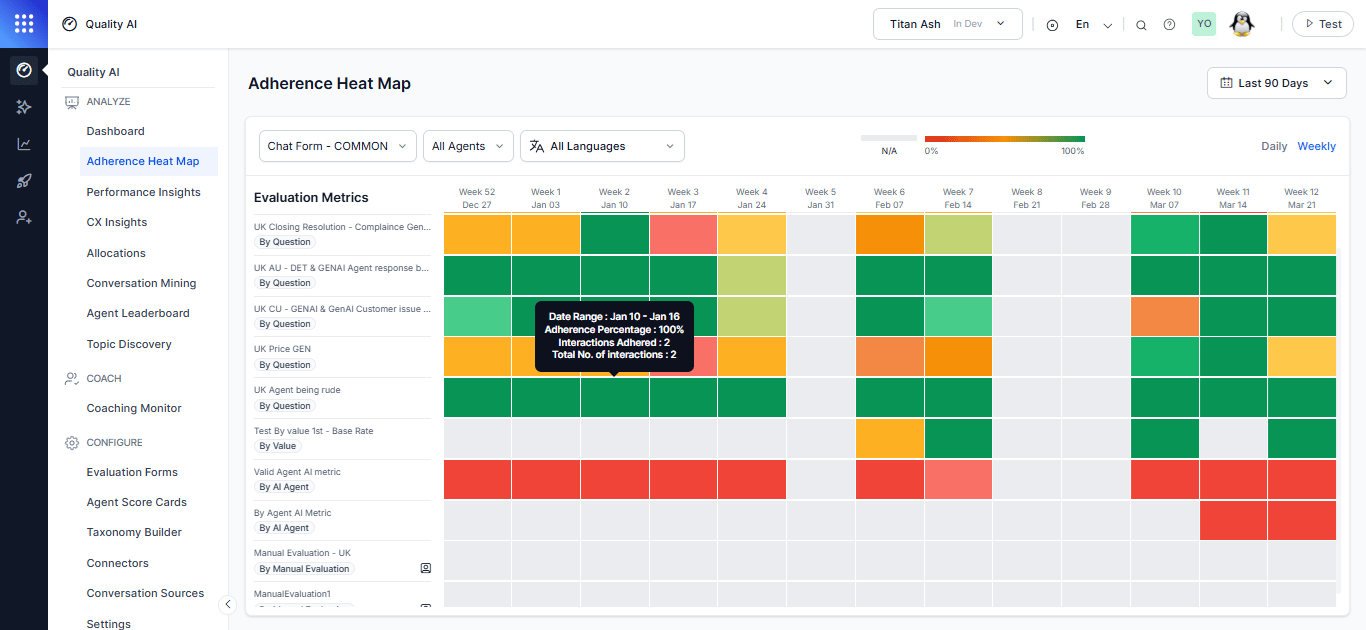
Hover over a heatmap tile to view the date range, total evaluated interactions, adhered interactions, and adherence percentage.
The tooltip displays only evaluated interactions. Flagged contacts are excluded unless manually evaluated. If no applicable evaluated interactions exist, the tooltip shows nothing.
 ***
## Filters
Use filters to refine adherence analysis.
### Date Range
The default date range is the last 7 days. The system uses the user's system time zone.
| View | When it applies |
| ---------------- | --------------------------------------------------------------------------------------------------- |
| **Daily** | Date range of 1-14 days; each tile shows one day. Horizontal scroll appears for ranges over 7 days. |
| **Weekly** | Date range over 14 days; each tile shows one full week. |
| **Custom Range** | All interaction data from 12:00:00 AM to 11:59:59 PM in the agent's time zone, up to 31 days. |
***
## Filters
Use filters to refine adherence analysis.
### Date Range
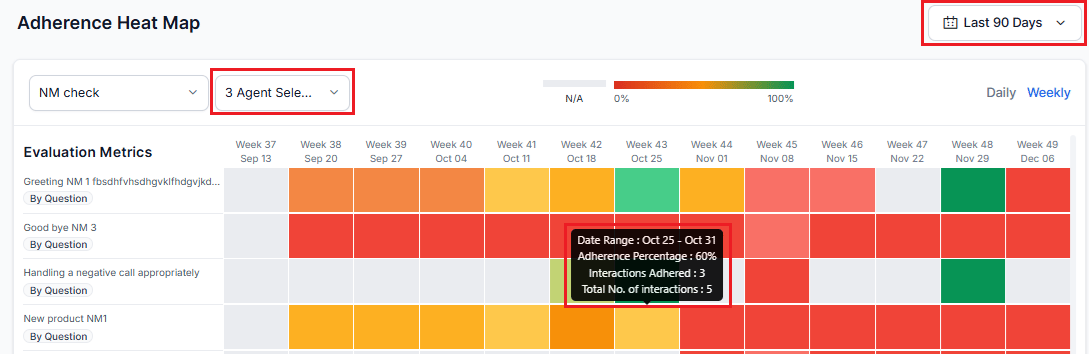
The default date range is the last 7 days. The system uses the user's system time zone.
| View | When it applies |
| ---------------- | --------------------------------------------------------------------------------------------------- |
| **Daily** | Date range of 1-14 days; each tile shows one day. Horizontal scroll appears for ranges over 7 days. |
| **Weekly** | Date range over 14 days; each tile shows one full week. |
| **Custom Range** | All interaction data from 12:00:00 AM to 11:59:59 PM in the agent's time zone, up to 31 days. |
 ### Evaluation Form
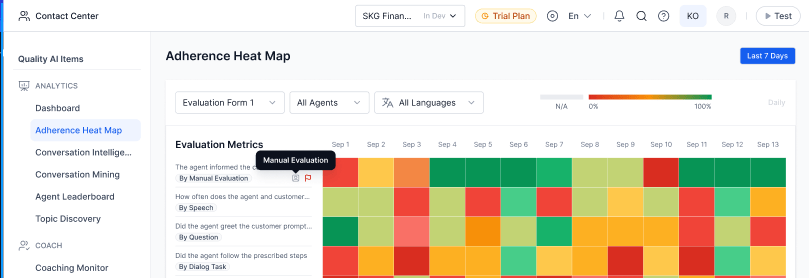
Select forms across assigned queues and set a default that persists across sessions — both on the Heatmap page and the QA Dashboard. Fatal metrics are highlighted with visual indicators. Selecting a new default replaces the previous one.
Manual Evaluation metrics display a visual indicator and represent unaudited conversations when no data is available.
### Agent
By default, all agents in the selected queues are shown. You can search and multi-select agents. Only tiles for the selected date range, agent, and language remain active; others are grayed out.
### Language
Use the **All Languages** dropdown to select one or more languages. Only metrics configured for the selected languages appear.
When a language filter is applied, only metrics configured for the selected languages appear in the dropdown.
***
## Clickable Functionality
Clicking a date range tile opens agent-level adherence for that metric, sorted from lowest to highest adherence.
### Evaluation Form
Select forms across assigned queues and set a default that persists across sessions — both on the Heatmap page and the QA Dashboard. Fatal metrics are highlighted with visual indicators. Selecting a new default replaces the previous one.
Manual Evaluation metrics display a visual indicator and represent unaudited conversations when no data is available.
### Agent
By default, all agents in the selected queues are shown. You can search and multi-select agents. Only tiles for the selected date range, agent, and language remain active; others are grayed out.
### Language
Use the **All Languages** dropdown to select one or more languages. Only metrics configured for the selected languages appear.
When a language filter is applied, only metrics configured for the selected languages appear in the dropdown.
***
## Clickable Functionality
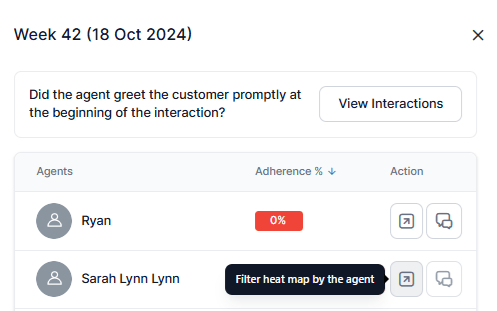
Clicking a date range tile opens agent-level adherence for that metric, sorted from lowest to highest adherence.
 ### Adherence Display
You can sort the adherence column by percentage. The default order shows the lowest adherence first.
### Adherence Display
You can sort the adherence column by percentage. The default order shows the lowest adherence first.
 ### Heatmap Interaction
Selecting a tile shows the percentage and count of adhered interactions per agent. The applied filters (shown as Unsaved) include the evaluation metric and pass or fail criteria.
### Heatmap Interaction
Selecting a tile shows the percentage and count of adhered interactions per agent. The applied filters (shown as Unsaved) include the evaluation metric and pass or fail criteria.
 ### View Interactions
Select **View Interactions** to open the [Conversation Mining](../analyze/conversation-mining-interactions.md) page with failed interactions for all agents. The applied filters (shown as **Unsaved**) include the evaluation metric name and metric qualification (pass or fail count).
### View Interactions
Select **View Interactions** to open the [Conversation Mining](../analyze/conversation-mining-interactions.md) page with failed interactions for all agents. The applied filters (shown as **Unsaved**) include the evaluation metric name and metric qualification (pass or fail count).
 **Behavior and Filters**
* The system lists agents with failed interactions.
**Behavior and Filters**
* The system lists agents with failed interactions.
 * Agents with no applicable interactions appear at the end of the list.
* Tiles show No Interactions (gray) when interactions don’t apply.
* The View Interactions action is disabled for agents with no applicable interactions or 100% adherence.
* Agents with no applicable interactions appear at the end of the list.
* Tiles show No Interactions (gray) when interactions don’t apply.
* The View Interactions action is disabled for agents with no applicable interactions or 100% adherence.
 * Select **View Interaction** to open the Conversation Mining page showing all failed interactions and the filtering criteria tags based on the metric you selected.
* Notification tags appear only when navigating from Adherence Heatmap to Conversation Mining, not when accessing Conversation Mining directly.
* Select **View Interaction** to open the Conversation Mining page showing all failed interactions and the filtering criteria tags based on the metric you selected.
* Notification tags appear only when navigating from Adherence Heatmap to Conversation Mining, not when accessing Conversation Mining directly.
 **Flagged Contacts**
Flagged contacts remain accessible in Conversation Mining through the Duration Status filter: All, Evaluated Only, Below Threshold, Duration Unavailable. The system excludes flagged contacts from this view unless manually evaluated.
**Notification Tags**
When navigating from the Adherence Heatmap to Conversation Mining, the system shows notification tags indicating the applied metric filters.
### Action Filters
| Action | Description |
| ---------------------------- | ----------------------------------------------------------------------------------------------------------------------------- |
| **Filter Heatmap by Agent** | Selecting the icon navigates to the agent's heatmap metrics page for the selected date range. |
| **View Failed Interactions** | Selecting the agent interaction icon opens the Interactions page in Conversation Mining for that agent's failed interactions. |
**Flagged Contacts**
Flagged contacts remain accessible in Conversation Mining through the Duration Status filter: All, Evaluated Only, Below Threshold, Duration Unavailable. The system excludes flagged contacts from this view unless manually evaluated.
**Notification Tags**
When navigating from the Adherence Heatmap to Conversation Mining, the system shows notification tags indicating the applied metric filters.
### Action Filters
| Action | Description |
| ---------------------------- | ----------------------------------------------------------------------------------------------------------------------------- |
| **Filter Heatmap by Agent** | Selecting the icon navigates to the agent's heatmap metrics page for the selected date range. |
| **View Failed Interactions** | Selecting the agent interaction icon opens the Interactions page in Conversation Mining for that agent's failed interactions. |
 ***
## QA / Supervisor Dashboard
The Supervisor Dashboard shows a simplified Adherence Heatmap with data from the last 7 days, a default evaluation form, and no clickable functionality. You can select and set an evaluation form as the default from the dropdown. Manually evaluated flagged contacts are included as normal.
All excluded contacts are removed from both numerator and denominator calculations in adherence metrics.
For details, see [Supervisor Dashboard](../analyze/dashboard.md).
***
Built with [Mintlify](https://mintlify.com).
***
## QA / Supervisor Dashboard
The Supervisor Dashboard shows a simplified Adherence Heatmap with data from the last 7 days, a default evaluation form, and no clickable functionality. You can select and set an evaluation form as the default from the dropdown. Manually evaluated flagged contacts are included as normal.
All excluded contacts are removed from both numerator and denominator calculations in adherence metrics.
For details, see [Supervisor Dashboard](../analyze/dashboard.md).
***
Built with [Mintlify](https://mintlify.com).