> ## Documentation Index
> Fetch the complete documentation index at: https://koreai-ai-for-work-dev.mintlify.app/llms.txt
> Use this file to discover all available pages before exploring further.
# Creating Audit Allocations
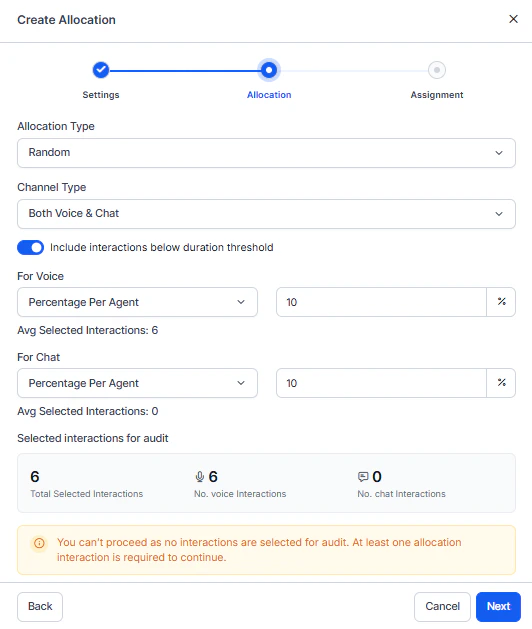
Creating an allocation follows a three-step workflow: **Settings**, **Allocation Type**, and **Assignment**. Each step builds on the previous one and guides you from initial setup to final auditor assignment.
Navigate to **Quality AI** > **ANALYZE** > **My Allocations**.
 ***
## Step 1: Settings
Define the evaluation scope, select the form, and filter the interactions to evaluate.
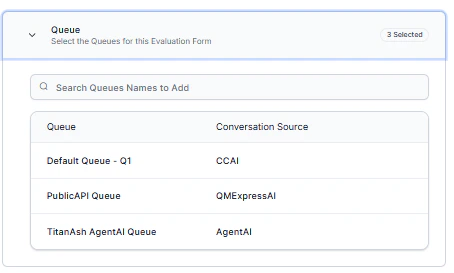
### Basic Information
| Field | Description |
| ------------------- | --------------------------------------------------------------------------------------------------------------------------------------------------------------------- |
| **Name** | Descriptive name that identifies the allocation purpose. |
| **Description** | Optional context about the allocation's purpose, focus areas, or evaluation priorities. |
| **Date Range** | Date range for the interactions to evaluate. |
| **Evaluation Form** | Form that guides auditors during review. Also determines which queues appear in subsequent filters. |
| **Languages** | Languages to include. Select specific languages for language-specific audits, or select all for full coverage. The system shows the total matching interaction count. |
| **Queue** | Queue associated with the selected evaluation form. |
***
## Step 1: Settings
Define the evaluation scope, select the form, and filter the interactions to evaluate.
### Basic Information
| Field | Description |
| ------------------- | --------------------------------------------------------------------------------------------------------------------------------------------------------------------- |
| **Name** | Descriptive name that identifies the allocation purpose. |
| **Description** | Optional context about the allocation's purpose, focus areas, or evaluation priorities. |
| **Date Range** | Date range for the interactions to evaluate. |
| **Evaluation Form** | Form that guides auditors during review. Also determines which queues appear in subsequent filters. |
| **Languages** | Languages to include. Select specific languages for language-specific audits, or select all for full coverage. The system shows the total matching interaction count. |
| **Queue** | Queue associated with the selected evaluation form. |
 ### Filter by Agents or Agent Groups
Narrow the scope to specific agents or groups:
| Filter | How to use |
| ---------------- | -------------------------------------------------------------------------------------------------------------------------------------- |
| **Agents** | Select individual agents from the dropdown. Leave empty to include all agents in the selected queues. |
| **Agent Groups** | Select pre-configured groups for bulk selection. Useful for team-based evaluations. Combine with individual agent selection as needed. |
### Filter by Agents or Agent Groups
Narrow the scope to specific agents or groups:
| Filter | How to use |
| ---------------- | -------------------------------------------------------------------------------------------------------------------------------------- |
| **Agents** | Select individual agents from the dropdown. Leave empty to include all agents in the selected queues. |
| **Agent Groups** | Select pre-configured groups for bulk selection. Useful for team-based evaluations. Combine with individual agent selection as needed. |
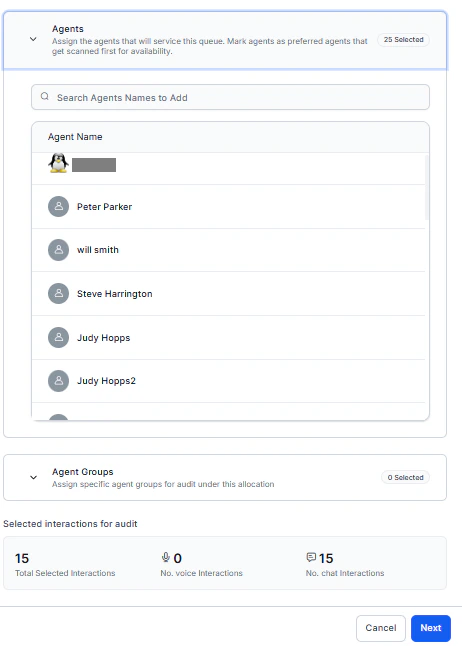 The interaction count updates automatically as you adjust selections.
Select **Next** to proceed to the Allocation step.
***
## Step 2: Allocation Type
Choose how to select interactions from the filtered pool.
The interaction count updates automatically as you adjust selections.
Select **Next** to proceed to the Allocation step.
***
## Step 2: Allocation Type
Choose how to select interactions from the filtered pool.
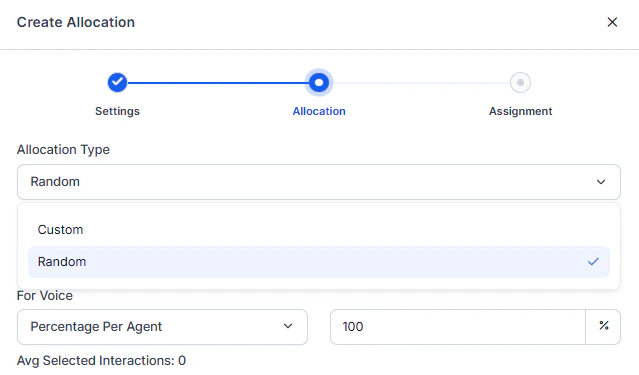 ### Random Allocation
Uses statistical sampling for impartial interaction selection. Ideal for representative coverage across agents.
### Random Allocation
Uses statistical sampling for impartial interaction selection. Ideal for representative coverage across agents.
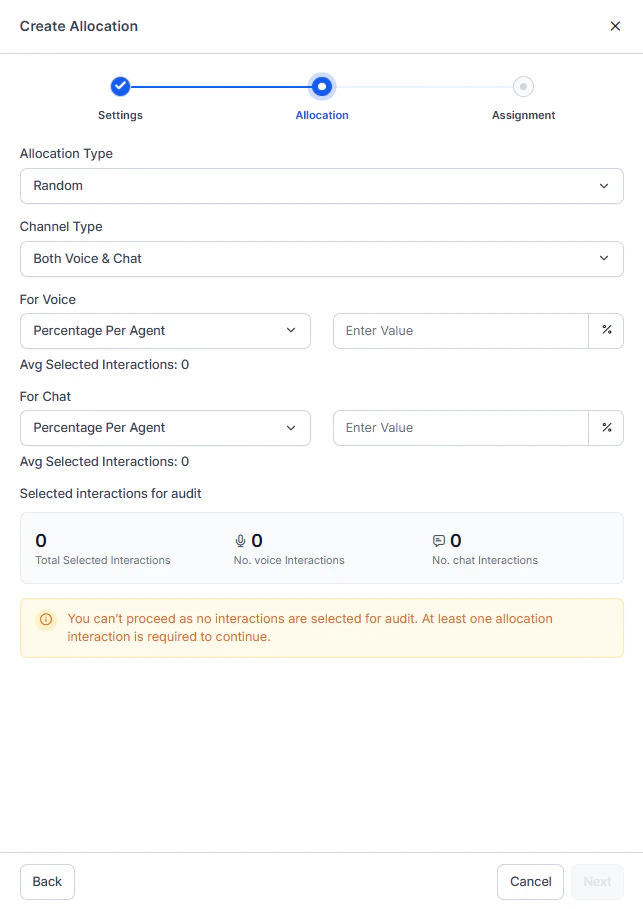 1. Select **Random**.
2. Enable the channels to include: **Voice**, **Chat**, or both.
3. Select an **Assignment Logic**:
| Logic | Description |
| -------------------------- | ---------------------------------------------------------------------------------------------------- |
| **Percentage Per Agent** | Allocates a consistent percentage of each agent's interactions. Ensures proportional representation. |
| **Interactions Per Agent** | Assigns a fixed number of interactions per agent. Provides uniform sample sizes. |
4. Enter the percentage or interaction count. The system displays:
* **Average per Agent**: Equivalent value in the opposite metric.
* **Total Interactions**: Real-time total for this configuration.
### Custom Allocation
Lets you apply specific filters to target particular scenarios, sentiment ranges, or performance metrics. Ideal for focused evaluations or validating Auto QA accuracy.
1. Select **Random**.
2. Enable the channels to include: **Voice**, **Chat**, or both.
3. Select an **Assignment Logic**:
| Logic | Description |
| -------------------------- | ---------------------------------------------------------------------------------------------------- |
| **Percentage Per Agent** | Allocates a consistent percentage of each agent's interactions. Ensures proportional representation. |
| **Interactions Per Agent** | Assigns a fixed number of interactions per agent. Provides uniform sample sizes. |
4. Enter the percentage or interaction count. The system displays:
* **Average per Agent**: Equivalent value in the opposite metric.
* **Total Interactions**: Real-time total for this configuration.
### Custom Allocation
Lets you apply specific filters to target particular scenarios, sentiment ranges, or performance metrics. Ideal for focused evaluations or validating Auto QA accuracy.
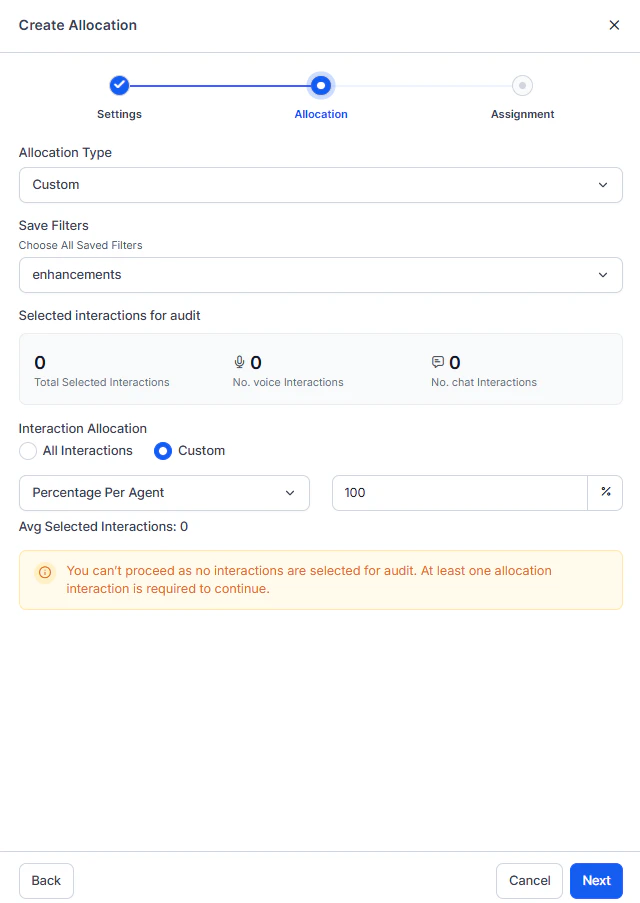 1. Select **Custom**.
2. Choose how to define your criteria:
| Method | When to use |
| ---------------- | ------------------------------------------------------------------------------------------ |
| **Saved Filter** | Select a filter previously saved in Conversation Mining. Best for recurring audit focuses. |
| **Quick Filter** | Configure a filter directly in the allocation workflow. Best for one-time allocations. |
1. Select **Custom**.
2. Choose how to define your criteria:
| Method | When to use |
| ---------------- | ------------------------------------------------------------------------------------------ |
| **Saved Filter** | Select a filter previously saved in Conversation Mining. Best for recurring audit focuses. |
| **Quick Filter** | Configure a filter directly in the allocation workflow. Best for one-time allocations. |
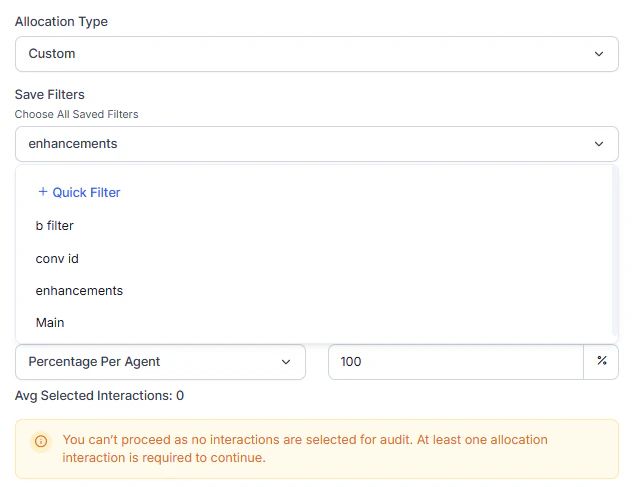 #### Quick Filter Creation
Select **Create Filter** to open the quick filter builder.
#### Quick Filter Creation
Select **Create Filter** to open the quick filter builder.
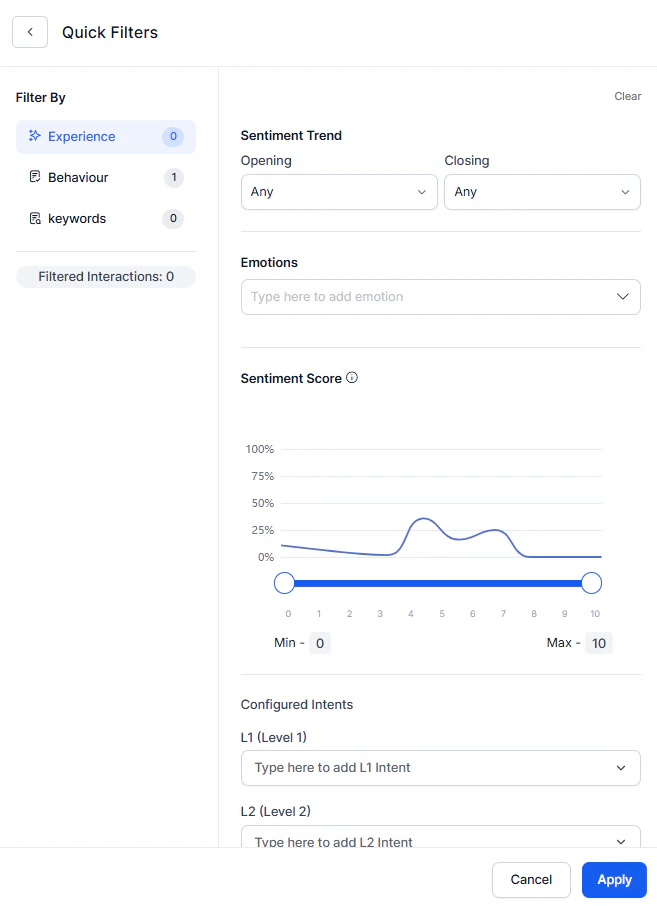 | Filter Category | What you can filter |
| --------------- | ------------------------------------------------------------------------------------------------ |
| **Experience** | Sentiment trends, emotions, wait time, CSAT, intents, topics, churn risk. |
| **Behavior** | Evaluation metrics, empathy score, crutch word usage, playbook adherence, Kore Evaluation Score. |
| **Keyword** | Include or exclude interactions containing specific words or phrases. |
| **Efficiency** | AHT, handling time ranges, AHT deviation, number of transfers. |
The interaction count updates dynamically as you adjust filters.
#### Per-Agent Control
After defining filters, you can further refine by sampling per agent:
* Specify a percentage or interaction count per agent within the filtered set.
* Combine targeted filtering with proportional sampling for precise control.
**Example**: Filter for interactions with sentiment scores less than 3, then sample 5% per agent from those results to focus on low-satisfaction situations.
Select **Next** to proceed to the Assignment step.
***
## Step 3: Assignment
Distribute the selected interactions across your auditor team.
| Filter Category | What you can filter |
| --------------- | ------------------------------------------------------------------------------------------------ |
| **Experience** | Sentiment trends, emotions, wait time, CSAT, intents, topics, churn risk. |
| **Behavior** | Evaluation metrics, empathy score, crutch word usage, playbook adherence, Kore Evaluation Score. |
| **Keyword** | Include or exclude interactions containing specific words or phrases. |
| **Efficiency** | AHT, handling time ranges, AHT deviation, number of transfers. |
The interaction count updates dynamically as you adjust filters.
#### Per-Agent Control
After defining filters, you can further refine by sampling per agent:
* Specify a percentage or interaction count per agent within the filtered set.
* Combine targeted filtering with proportional sampling for precise control.
**Example**: Filter for interactions with sentiment scores less than 3, then sample 5% per agent from those results to focus on low-satisfaction situations.
Select **Next** to proceed to the Assignment step.
***
## Step 3: Assignment
Distribute the selected interactions across your auditor team.
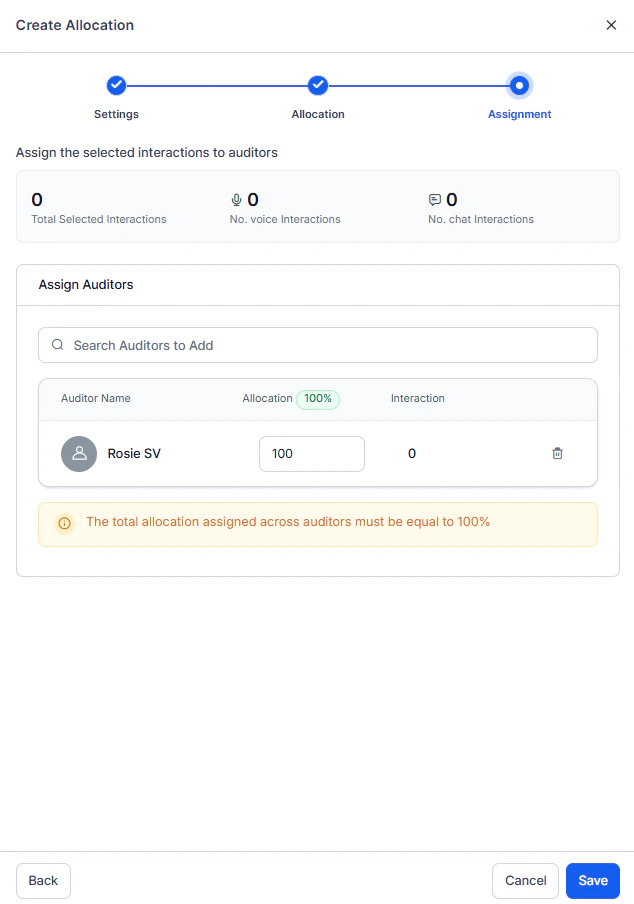 1. Use the **Search Auditors** dropdown to select team members.
2. Choose multiple auditors to distribute the workload.
3. Enter the **Allocation Percentage** for each auditor. The system calculates the exact interaction count per auditor automatically.
**Example** (100 total interactions, 3 auditors):
* Auditor A: 40% = 40 interactions
* Auditor B: 30% = 30 interactions
* Auditor C: 30% = 30 interactions
4. Adjust percentages until they total exactly 100%. The **Create** button remains disabled until the total reaches 100%.
5. Review the complete configuration:
* **Settings**: Form, languages, agents, agent groups.
* **Allocation**: Method (Random or Custom), filters, total interactions.
* **Assignment**: Auditors and their percentages.
6. Select **Create** to activate the allocation.
The system immediately assigns interactions to auditors. Auditors can see their assignments in the **Assigned to Me** tab right away.
### After Creating an Allocation
* The allocation appears in your **My Allocations** tab.
* Auditors see their assigned interactions in **Assigned to Me**.
* Track completion progress in real-time.
* Edit the allocation at any time to reassign pending interactions.
***
## Use Case: Managing Auditor Availability During Peak Season
**Scenario**: A QA Manager creates a monthly random sample allocation for 15 auditors. Three days later, two auditors report unexpected leave, leaving 40 pending interactions unassigned.
### Step-by-Step Resolution
1. **Identify the issue**
* Open **My Allocations** tab.
* Locate the "December 2024 Monthly Sample" allocation.
* Confirm that two auditors (John, Doe) have 0 interactions completed and 20 pending each.
2. **Access Edit**
* Select **Edit** from the Actions menu.
* Review: Auditor John — 20 assigned, 0 completed, 20 pending. Auditor Doe — 20 assigned, 0 completed, 20 pending.
3. **Reassign pending work**
* Select the checkboxes for Auditor John and Auditor Doe (40 total pending interactions).
* Select **Add New Auditors** and choose three auditors with lighter workloads: C, P, R.
4. **Configure new distribution**
* C: 35% = 14 interactions
* P: 35% = 14 interactions
* R: 30% = 12 interactions
* Verify the total reaches 100%.
5. **Complete reassignment**
* Select **Update**.
* C, P, and R immediately see new assignments in **Assigned to Me**.
* Completed work from original auditors remains unchanged.
**Outcome**: The monthly audit stays on schedule. No interactions are lost or duplicated, and workload is balanced across available team members.
***
Built with [Mintlify](https://mintlify.com).
1. Use the **Search Auditors** dropdown to select team members.
2. Choose multiple auditors to distribute the workload.
3. Enter the **Allocation Percentage** for each auditor. The system calculates the exact interaction count per auditor automatically.
**Example** (100 total interactions, 3 auditors):
* Auditor A: 40% = 40 interactions
* Auditor B: 30% = 30 interactions
* Auditor C: 30% = 30 interactions
4. Adjust percentages until they total exactly 100%. The **Create** button remains disabled until the total reaches 100%.
5. Review the complete configuration:
* **Settings**: Form, languages, agents, agent groups.
* **Allocation**: Method (Random or Custom), filters, total interactions.
* **Assignment**: Auditors and their percentages.
6. Select **Create** to activate the allocation.
The system immediately assigns interactions to auditors. Auditors can see their assignments in the **Assigned to Me** tab right away.
### After Creating an Allocation
* The allocation appears in your **My Allocations** tab.
* Auditors see their assigned interactions in **Assigned to Me**.
* Track completion progress in real-time.
* Edit the allocation at any time to reassign pending interactions.
***
## Use Case: Managing Auditor Availability During Peak Season
**Scenario**: A QA Manager creates a monthly random sample allocation for 15 auditors. Three days later, two auditors report unexpected leave, leaving 40 pending interactions unassigned.
### Step-by-Step Resolution
1. **Identify the issue**
* Open **My Allocations** tab.
* Locate the "December 2024 Monthly Sample" allocation.
* Confirm that two auditors (John, Doe) have 0 interactions completed and 20 pending each.
2. **Access Edit**
* Select **Edit** from the Actions menu.
* Review: Auditor John — 20 assigned, 0 completed, 20 pending. Auditor Doe — 20 assigned, 0 completed, 20 pending.
3. **Reassign pending work**
* Select the checkboxes for Auditor John and Auditor Doe (40 total pending interactions).
* Select **Add New Auditors** and choose three auditors with lighter workloads: C, P, R.
4. **Configure new distribution**
* C: 35% = 14 interactions
* P: 35% = 14 interactions
* R: 30% = 12 interactions
* Verify the total reaches 100%.
5. **Complete reassignment**
* Select **Update**.
* C, P, and R immediately see new assignments in **Assigned to Me**.
* Completed work from original auditors remains unchanged.
**Outcome**: The monthly audit stays on schedule. No interactions are lost or duplicated, and workload is balanced across available team members.
***
Built with [Mintlify](https://mintlify.com).