
| Specification | Details |
|---|---|
| Repository type | Cloud |
| Supported content | All, Articles (.aspx), Pages, and files in .doc, .docx, .ppt, .pptx, .html, .xhtml, .txt, .pdf formats |
| RACL support | Yes |
| Content filtering | Yes |
| Auto permission resolution | Yes |
Searching through attachments is not supported.
Prerequisites
- Access to the Azure Portal with permissions to register applications.
- A multi-tenant app registered in Azure Active Directory (see below).
Authorization Support
Search AI supports two OAuth 2.0 authentication mechanisms for SharePoint:- Authorization Code Grant Type — The app acts on behalf of the user using Delegated Permissions. Requires explicit user consent.
- Client Credentials Grant Type — The app acts as itself using Application Permissions. No user interaction required.
Register a Multi-Tenant App in SharePoint
App registration establishes trust between Search AI and the Microsoft identity platform.-
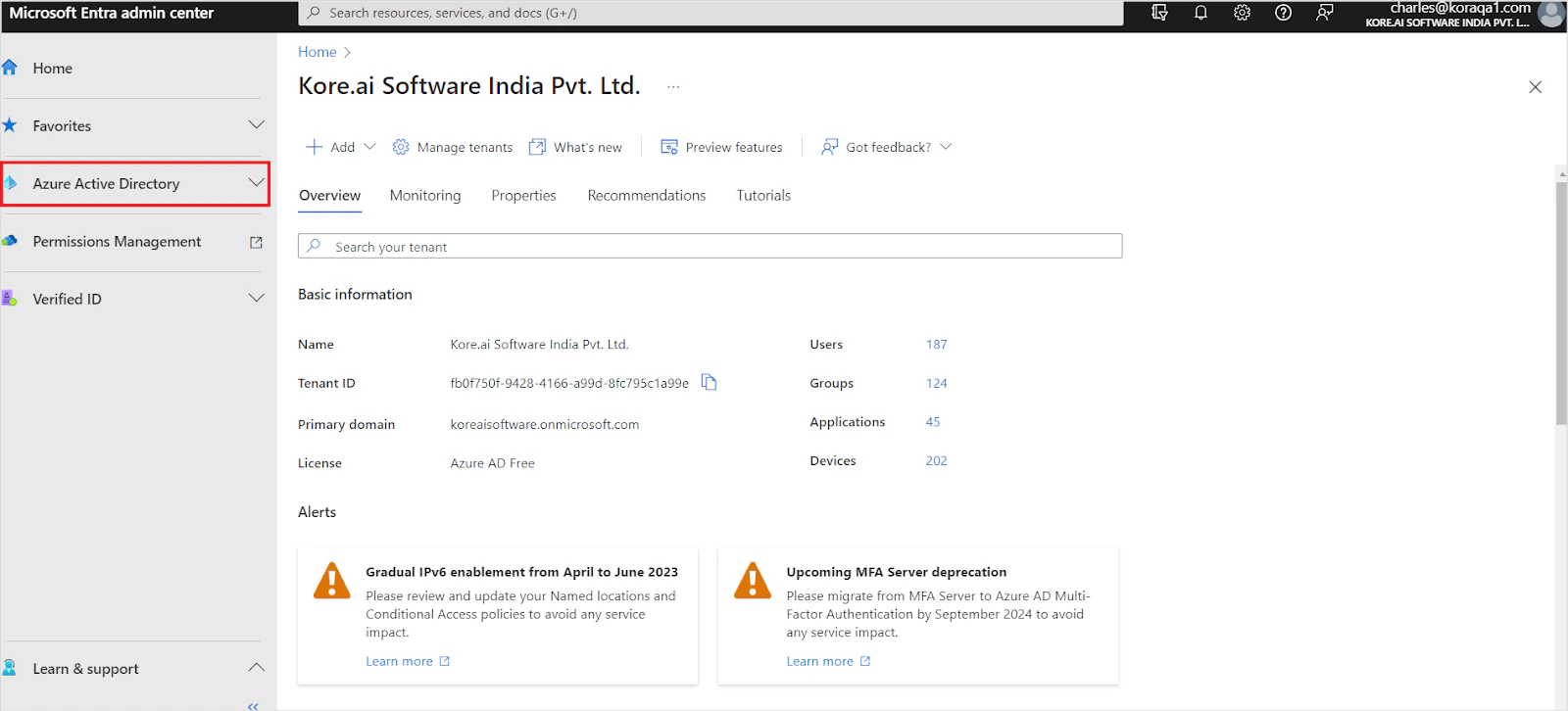
Log in to the Azure Portal and go to Azure Active Directory.
-
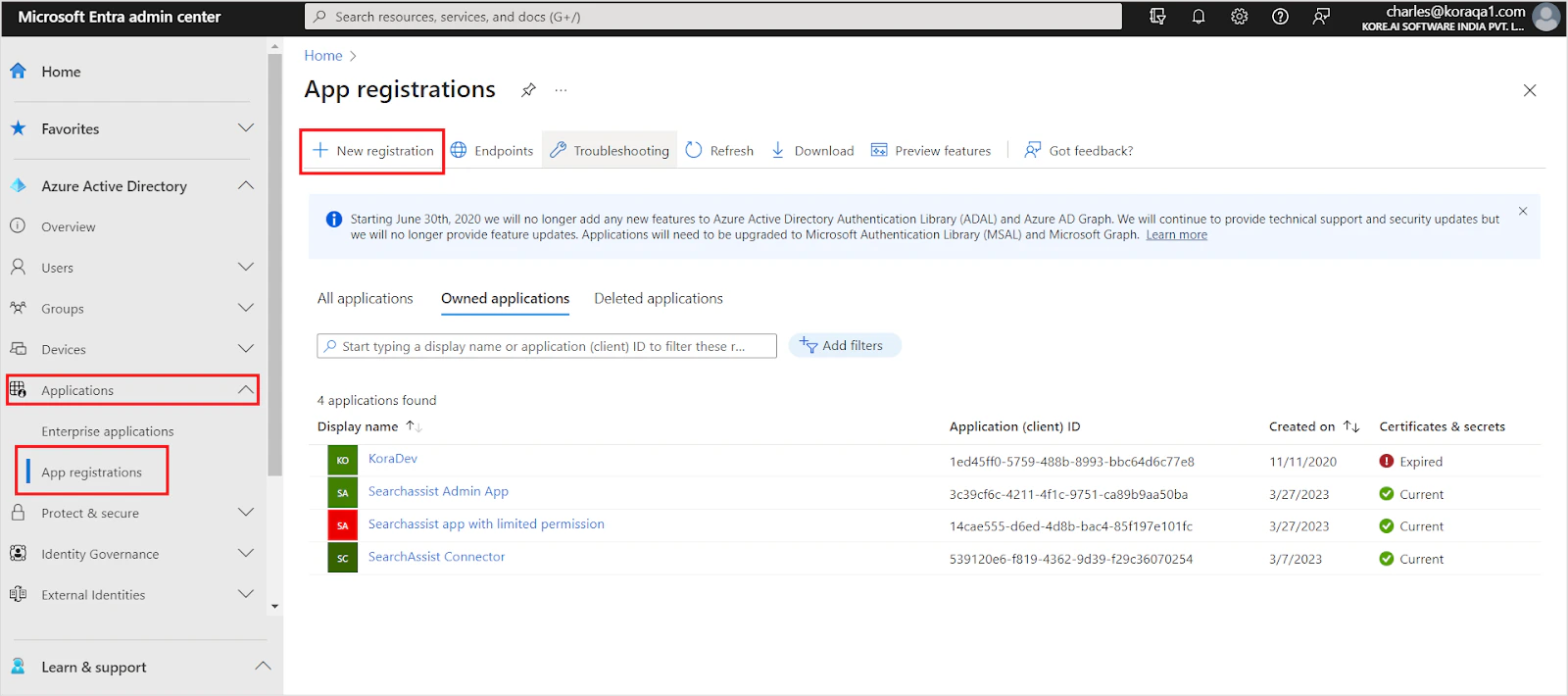
Go to App Registrations under Applications and click New Registration.
-
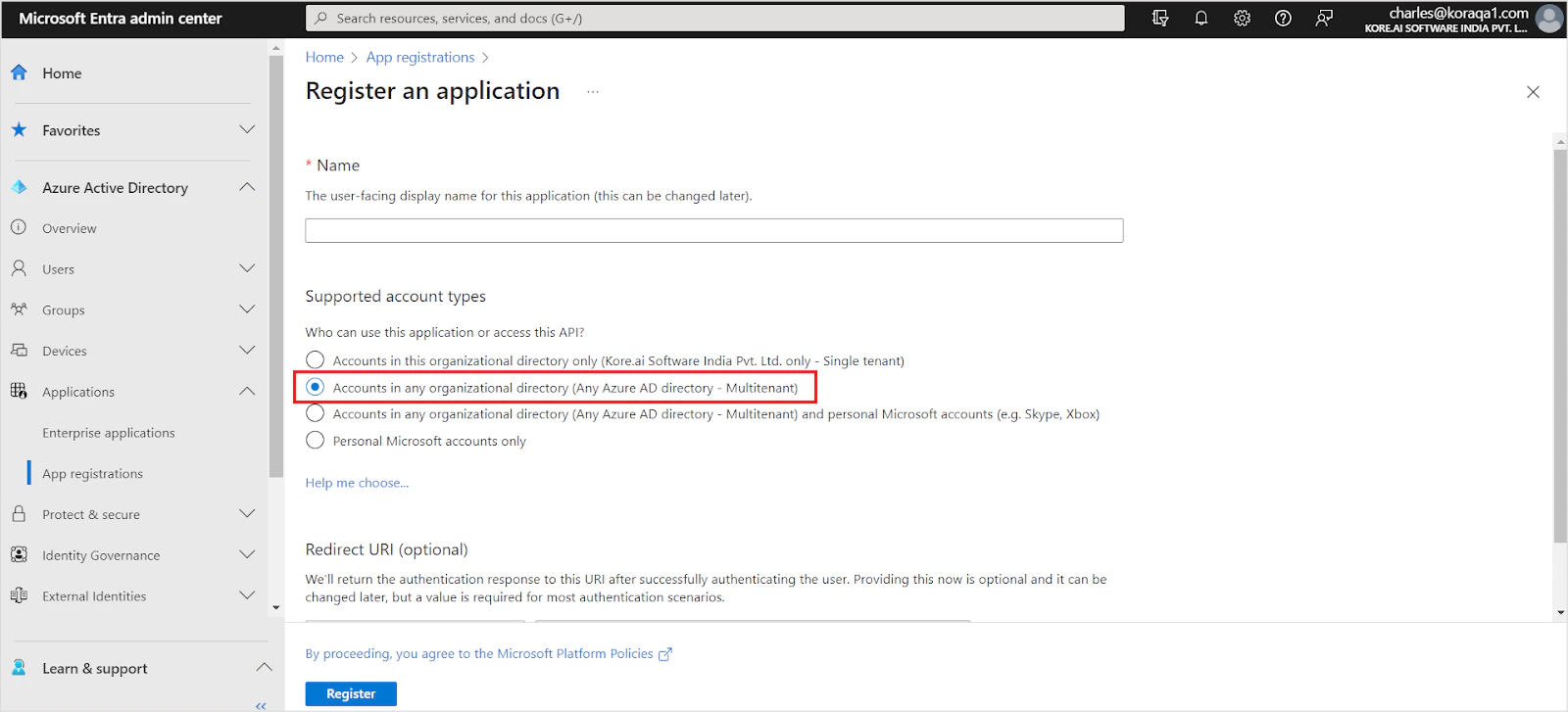
Enter the application name. Set the account type to Accounts in any organization directory (multi-tenant). Set the Redirect URL for your region and click Register.
- JP Region:
https://jp-bots-idp.kore.ai/workflows/callback - DE Region:
https://de-bots-idp.kore.ai/workflows/callback - Production:
https://idp.kore.com/workflows/callback
- JP Region:
-
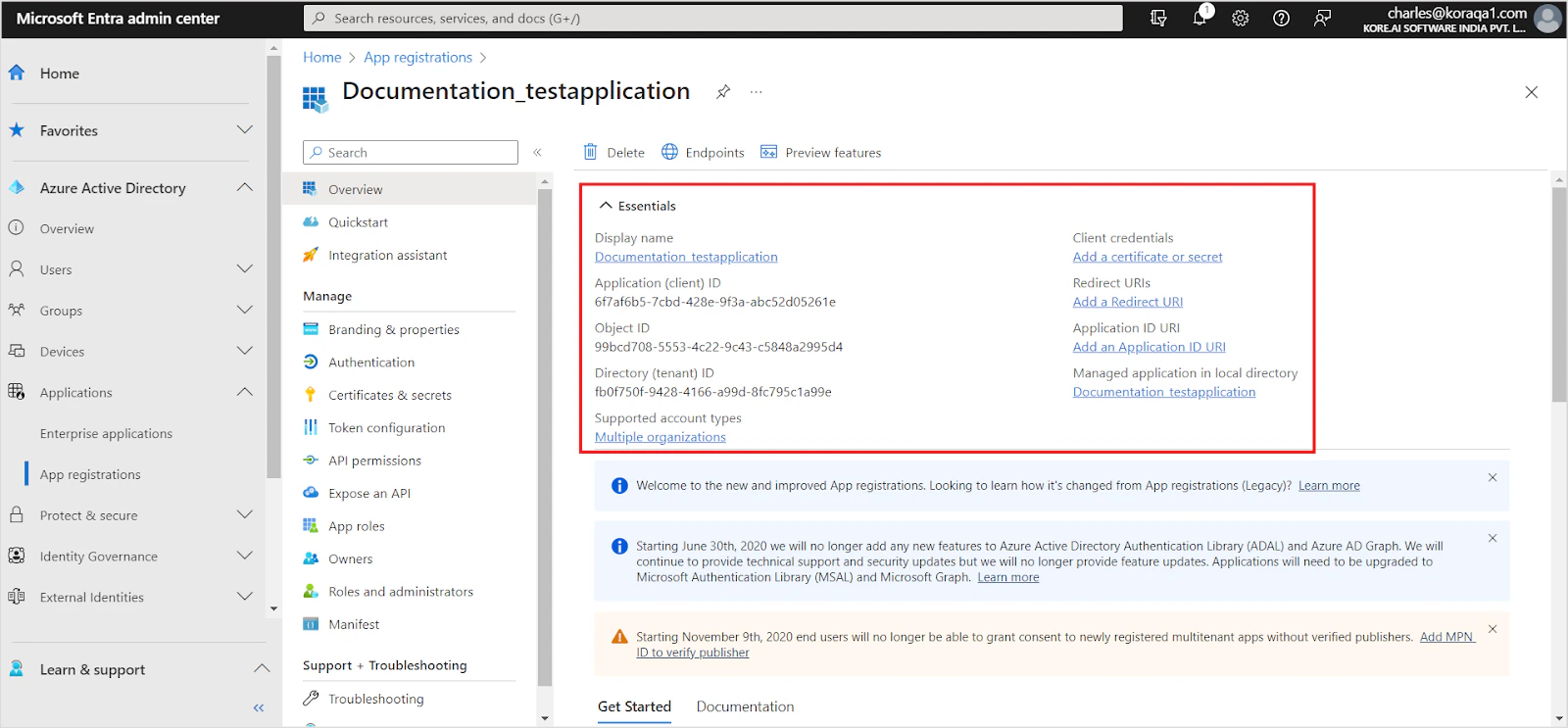
Save the Client ID and Tenant ID from the Overview section.
-
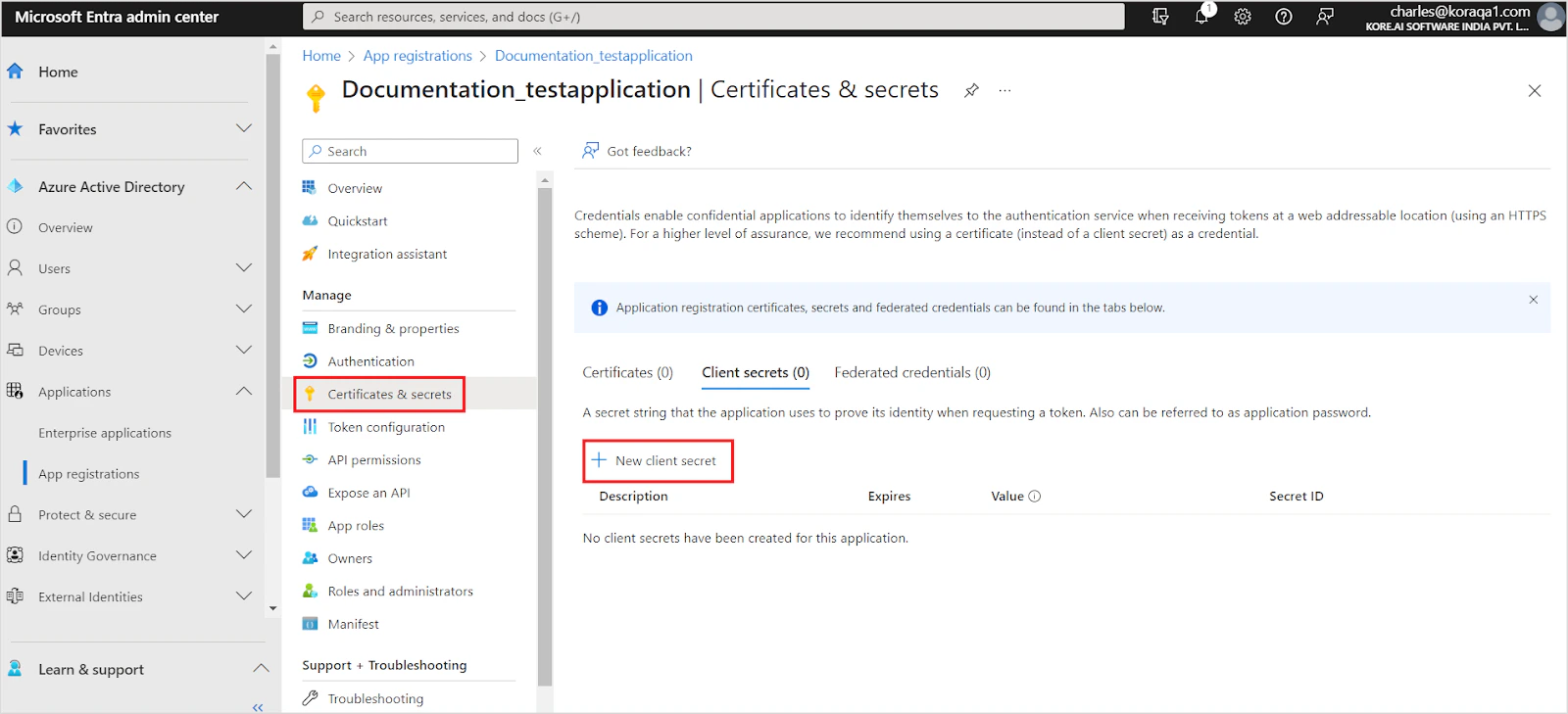
Go to Certificates and Secrets and generate a client secret.
-
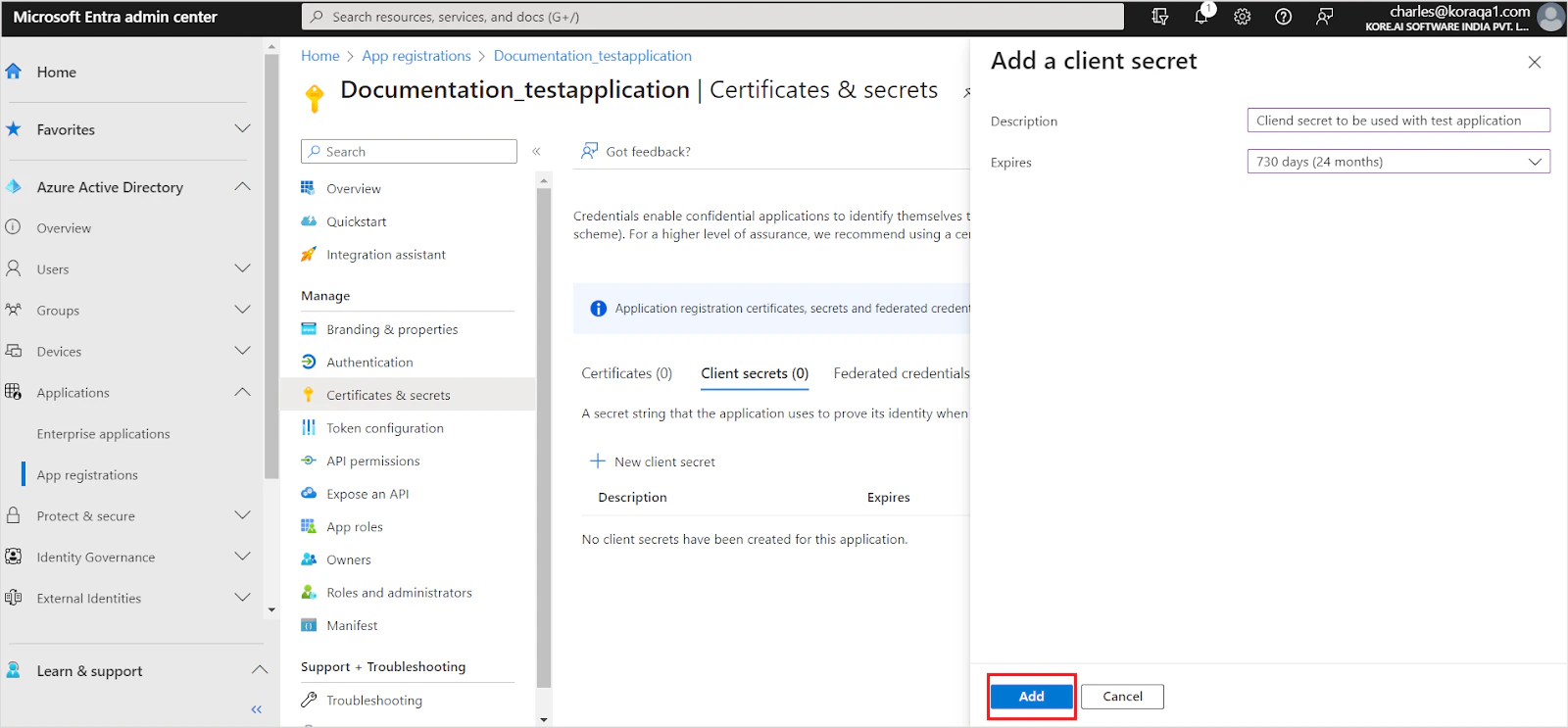
Enter a description, set the expiration to 24 months, and click Add.
-
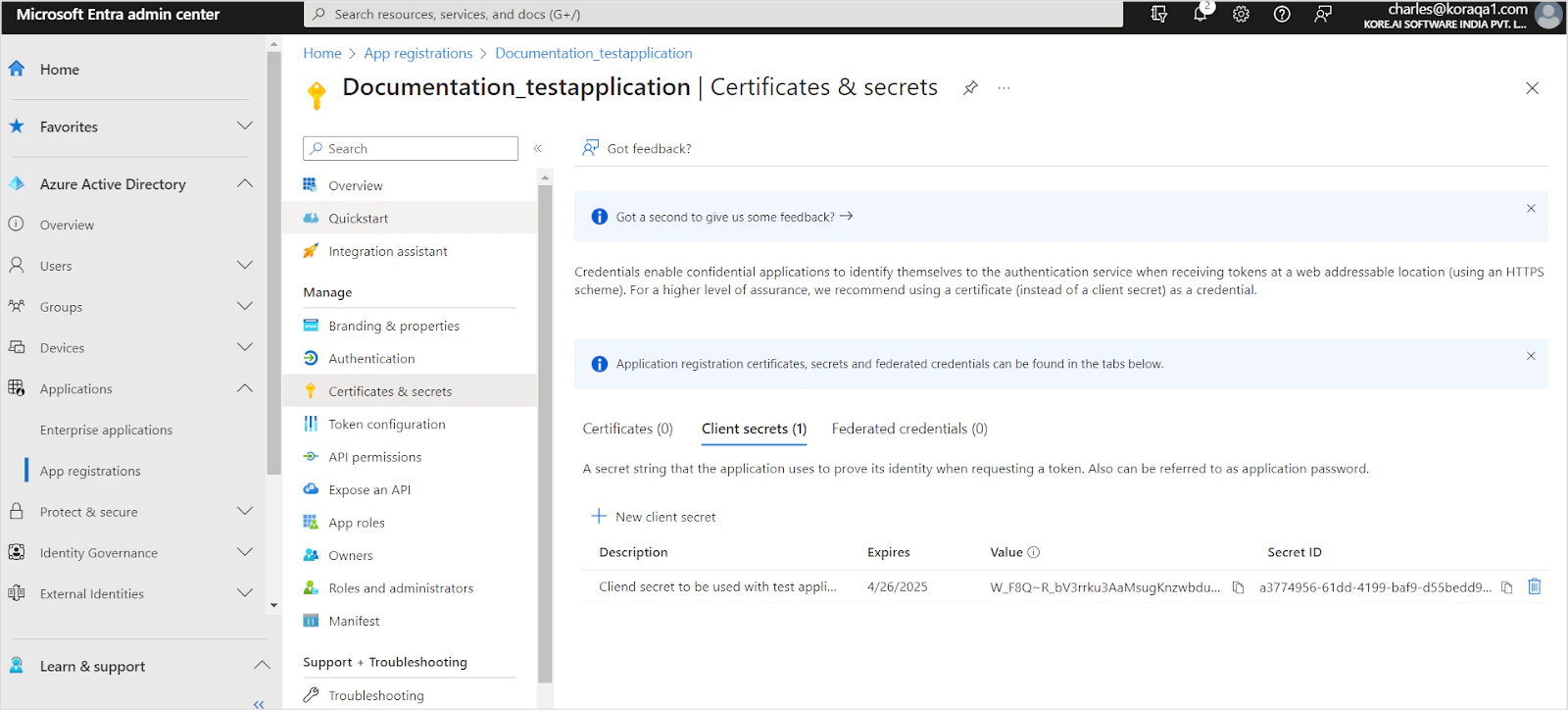
Save the client secret immediately — it cannot be viewed again after leaving the page.
-
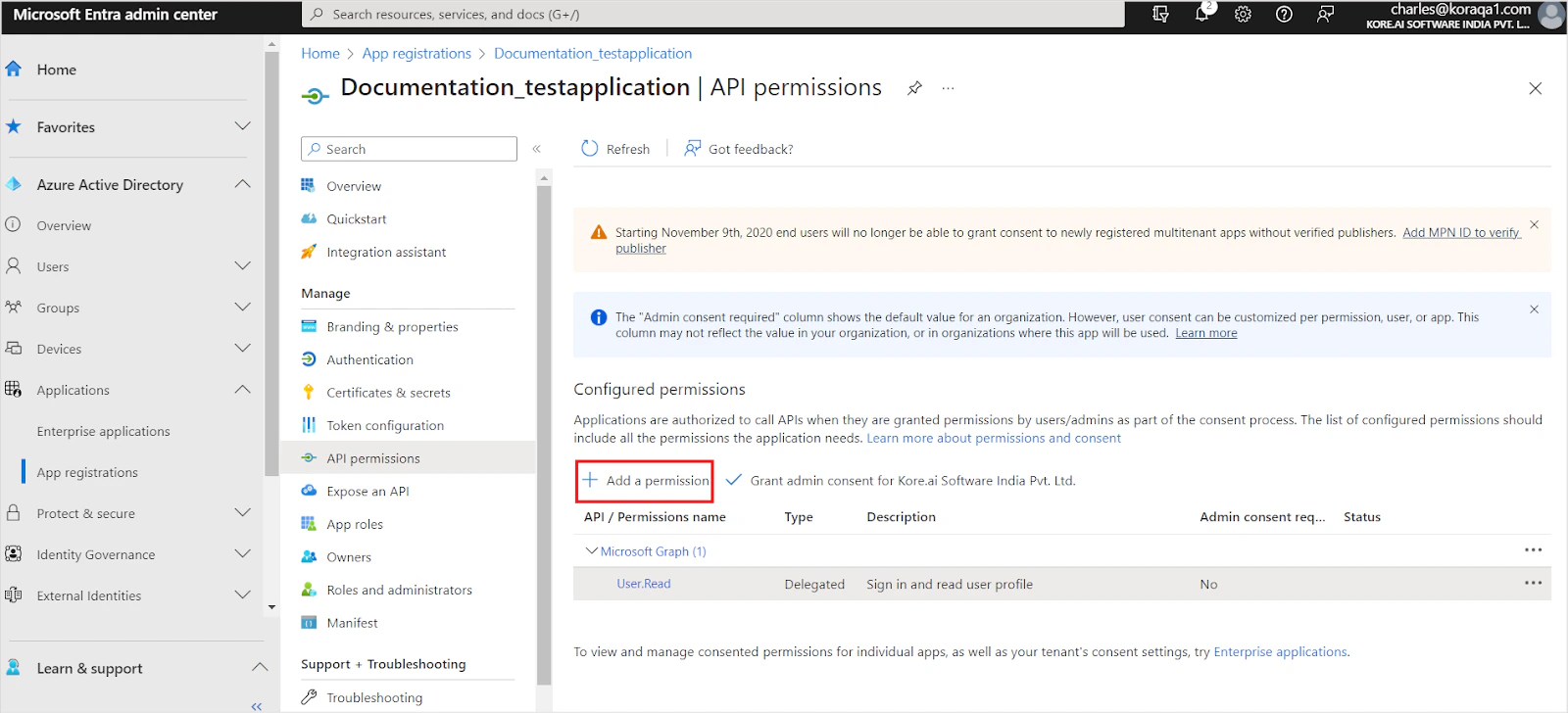
Go to API Permissions and click Add a permission.
-
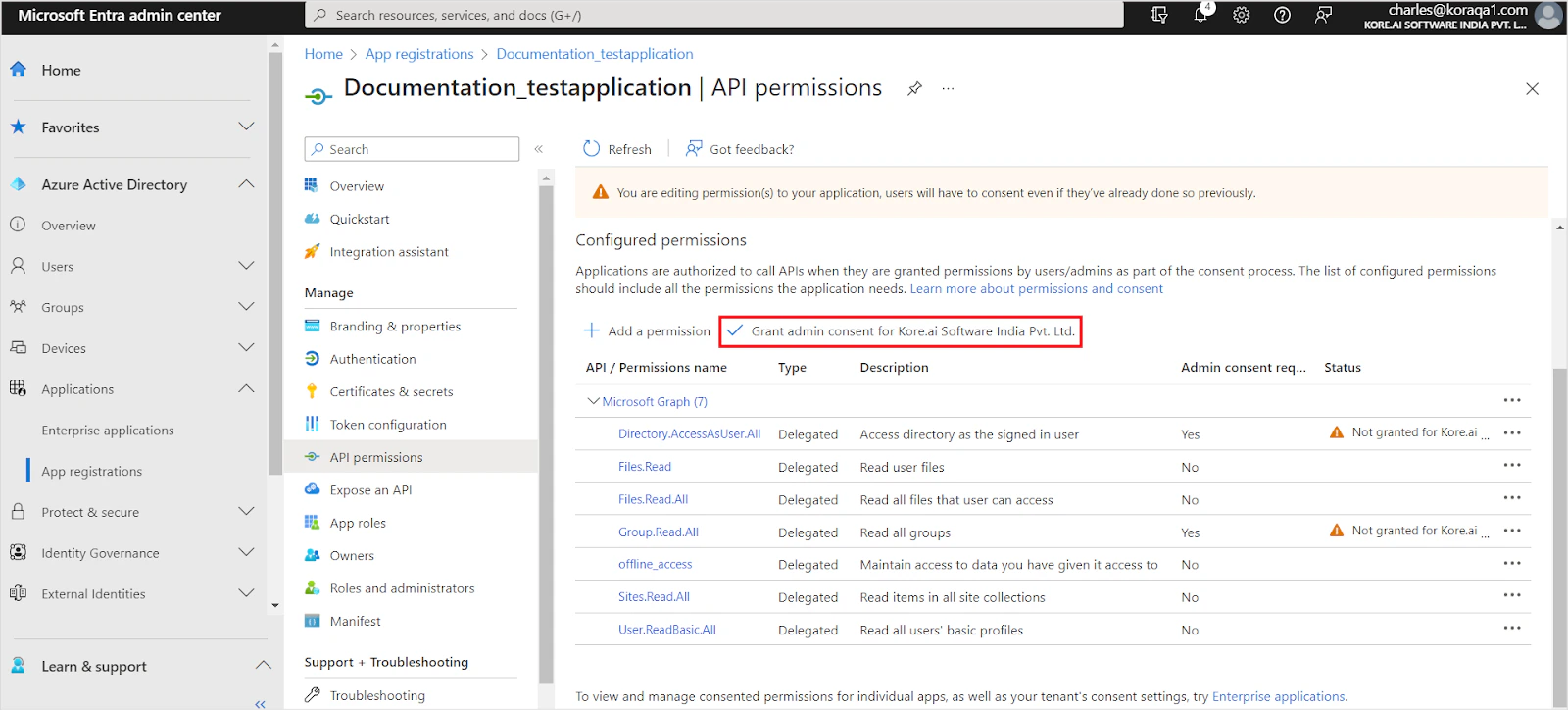
Add the following permissions under Microsoft Graph:
Delegated Permissions (for Authorization Code Grant Type):
User.ReadBasic.AllGroup.Read.AllDirectory.AccessAsUser.AllFiles.ReadFiles.Read.AllSites.Read.AllOffline_accessGroupMember.Read.All— required only if RACL is enabledOrganization.Read.All— required only if RACL is enabled
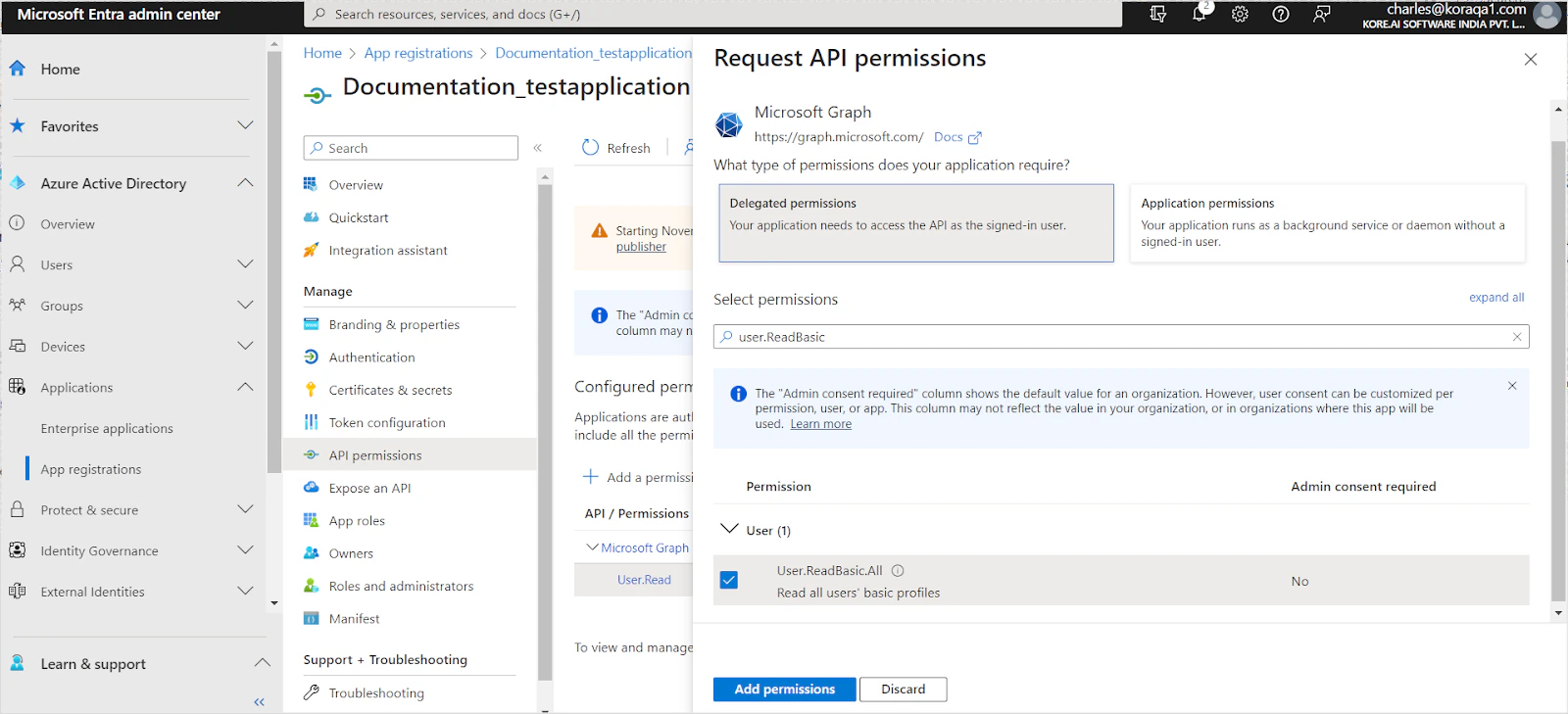
Sites.SelectedGroupMember.Read.All— required only if RACL is enabledOrganization.Read.All— required only if RACL is enabled
-
Click Grant Admin Consent to apply the permissions.
Configure the SharePoint Connector in Search AI
- Go to Content > Connectors and select SharePoint.
- On the Authorization page, provide the following details:
| Field | Description |
|---|---|
| Name | Unique name for the connector |
| Authorization Type | OAuth 2.0 |
| Grant Type | Authorization Code or Client Credentials |
| Client ID | Client ID from the Azure app registration |
| Client Secret | Client secret from the Azure app registration |
| Tenant ID | Directory (Tenant) ID from your Azure AD instance |
| Content Type | All, Articles, or Files |
- Click Connect to authenticate.
Content Ingestion
After authentication, select the SharePoint sites to ingest content from.Configuration steps vary depending on the grant type selected.
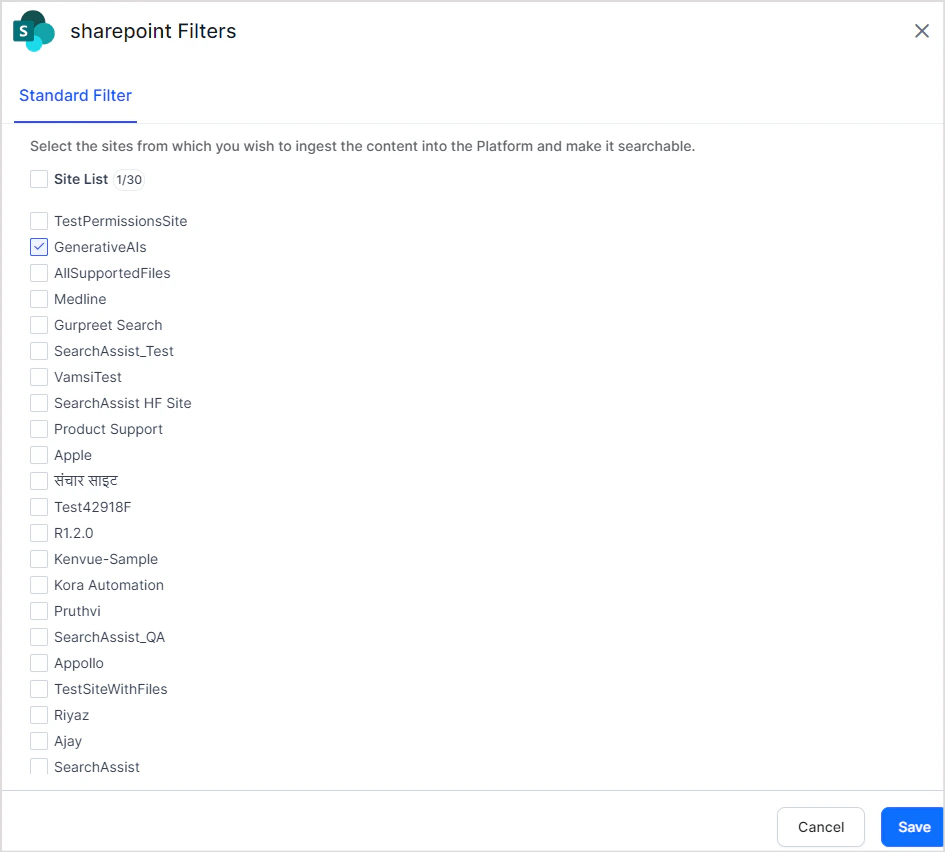
Authorization Code Grant Type
- Go to the Configuration section.
- Under Sync Specific Content, click Select Content.
- Choose the SharePoint sites to ingest content from.
- Click Save.
Client Credentials Grant Type
- Go to the Configuration section.
- Under Sync Specific Content, click Configure.
- Enter one or more Site IDs. The Azure AD app must have access to all sites listed here.
- Select the content type: Articles or Files.
- Optionally apply filters to narrow the content ingested.
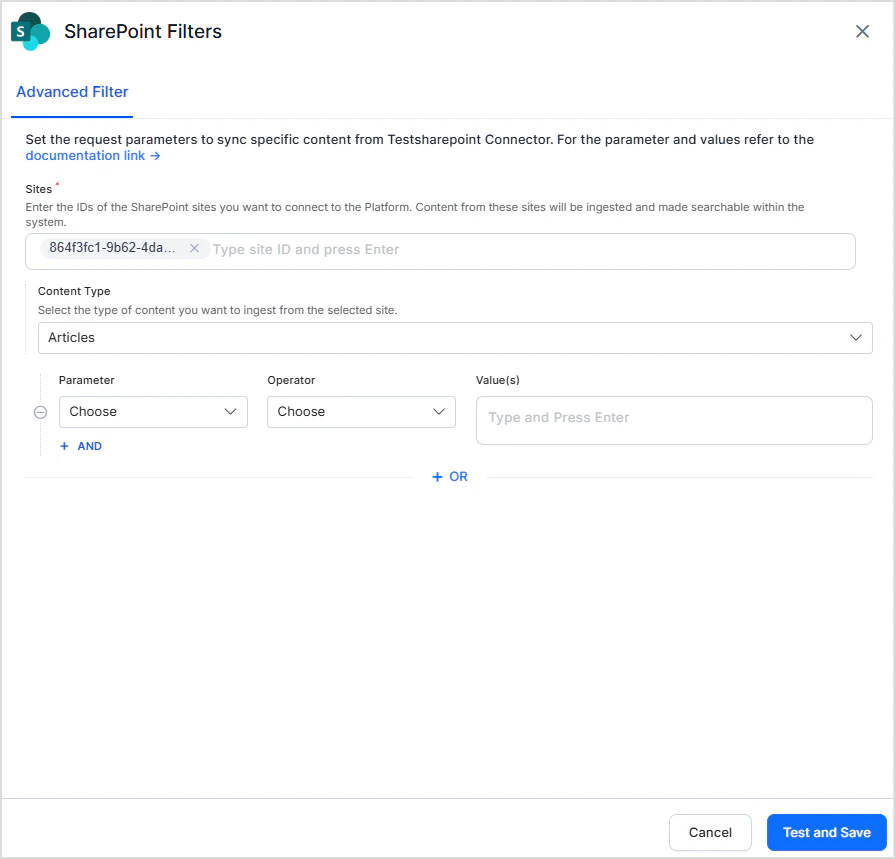
Only Articles or Files can be selected individually as content types. To ingest both, create a filter with two conditions joined by the OR operator:
- Condition 1: Content Type = Articles
- Condition 2: Content Type = Files
Sync Content
Click Sync Now to start ingestion immediately, or configure Schedule Sync in the Configuration page for automatic ingestion.Advanced Content Filtering
In addition to selecting sites, Search AI allows you to apply custom filtering rules to selectively ingest content. To configure filters, navigate to the Advanced Filter tab and define your rules using the following fields.- Site — Select the site on which filtering is to be applied.
- Content Type — Select the type of content: All, Articles, or Files.
- Parameter — The attribute of the content on which the filter condition is applied. Select from the dropdown or add a custom parameter using +Add. Ensure custom parameter names match exactly with the field names in SharePoint.
- Operator — Defines how the condition is evaluated (for example, Equals, Contains, Greater Than).
- Value — The value the parameter must meet according to the chosen operator.
Filter conditions are optional. If no conditions are defined, all content matching the selected Content Type from the chosen site is ingested.
| Parameter | Description | Supported Operators |
|---|---|---|
| Folder Path | Path of the folder from the drive | In |
- Multiple rules — Content that satisfies any one of the defined rules is selected for ingestion (logical OR between rules).
- Multiple conditions within a rule — All conditions in a rule must be satisfied for the content to be selected (logical AND within a rule).
Access Control
Understanding Permissions in SharePoint
SharePoint permissions include site-level permissions and individual file permissions.Site-Level Permissions
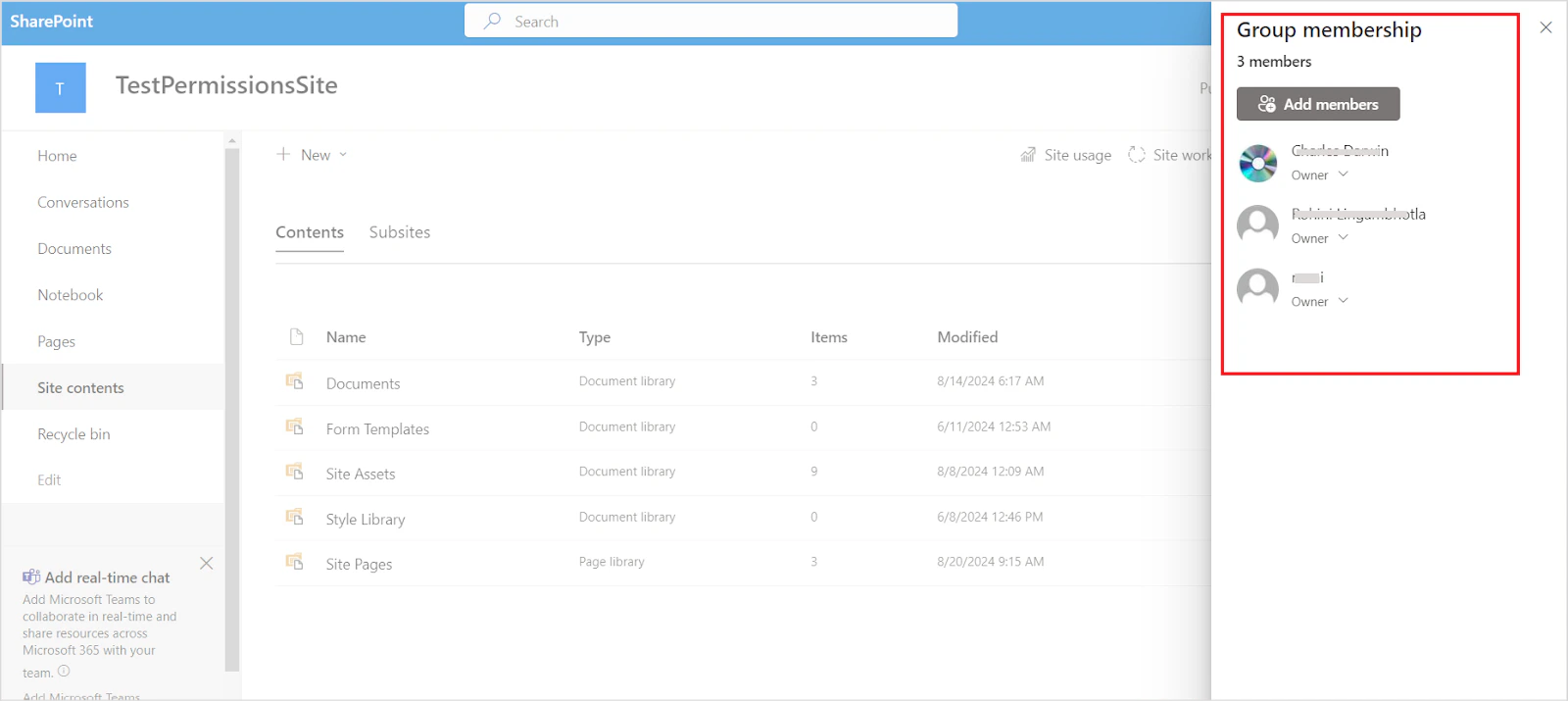
SharePoint uses two membership group types:- Office 365 Groups — Grant site access to members.
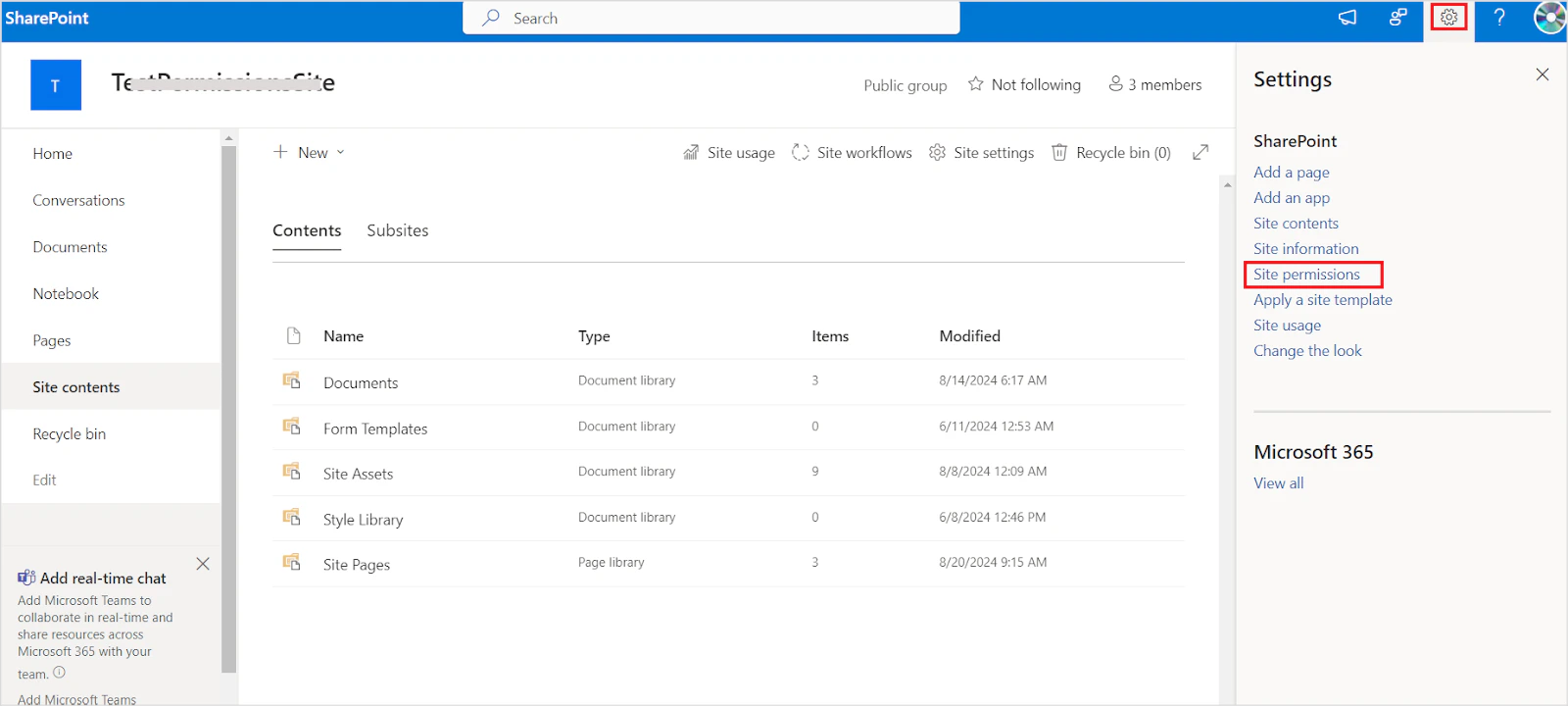
- SharePoint Security Groups — Control site access at three default permission levels: Site Visitors, Site Members, and Site Owners.
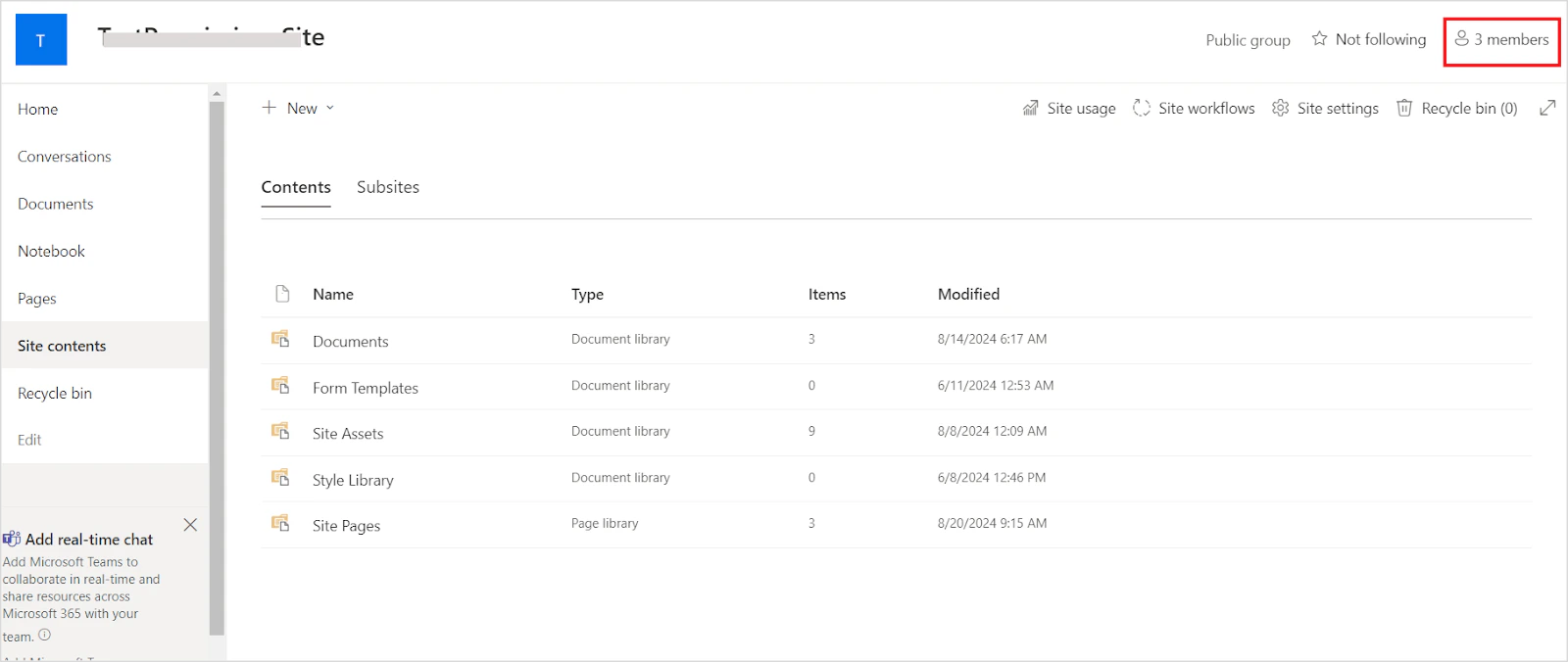
How Search AI Handles Site Permissions
- Office 365 Group — A Permission Entity is created in Search AI. All users directly added to this group are automatically added to the Permission Entity. Email groups added here must be resolved manually using the Permission Entity APIs.
- SharePoint Security Groups — Three Permission Entities are created (one per default permission level). Users in these groups must be added manually to their corresponding Permission Entities using the Permission Entity APIs.
sourceACL field contains four Permission Entities corresponding to the site permissions.
File-Level Permissions
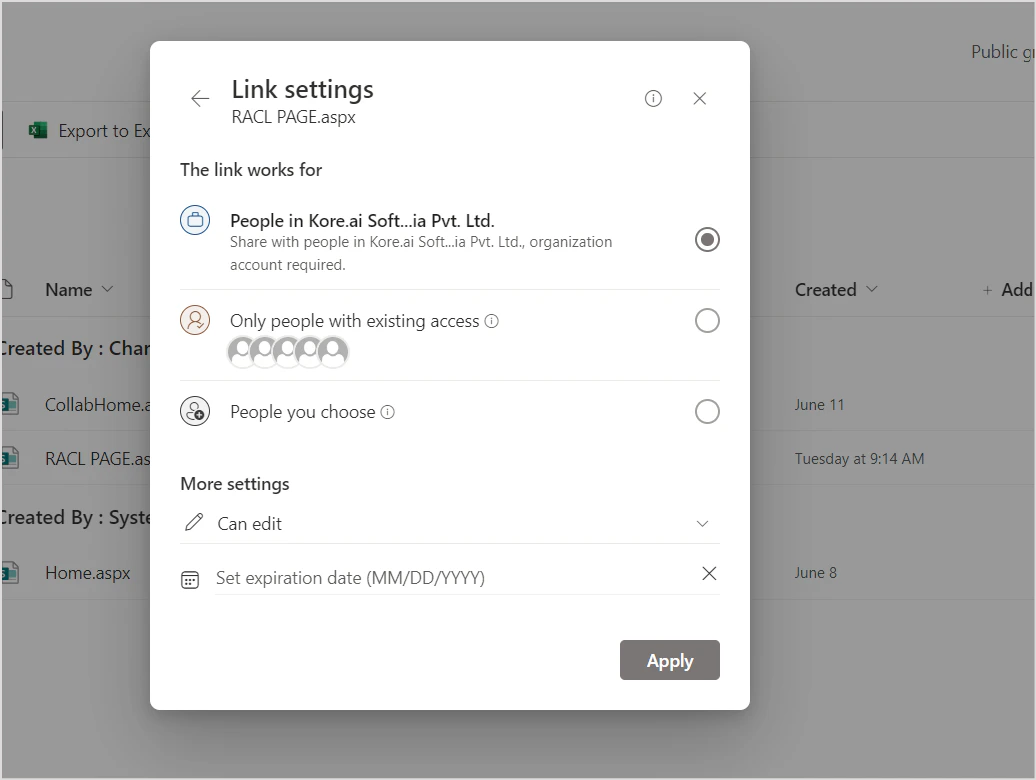
Site-level permissions apply to all files within that site. File owners can also share files with individual users, internally or externally, or with all domain or organization members.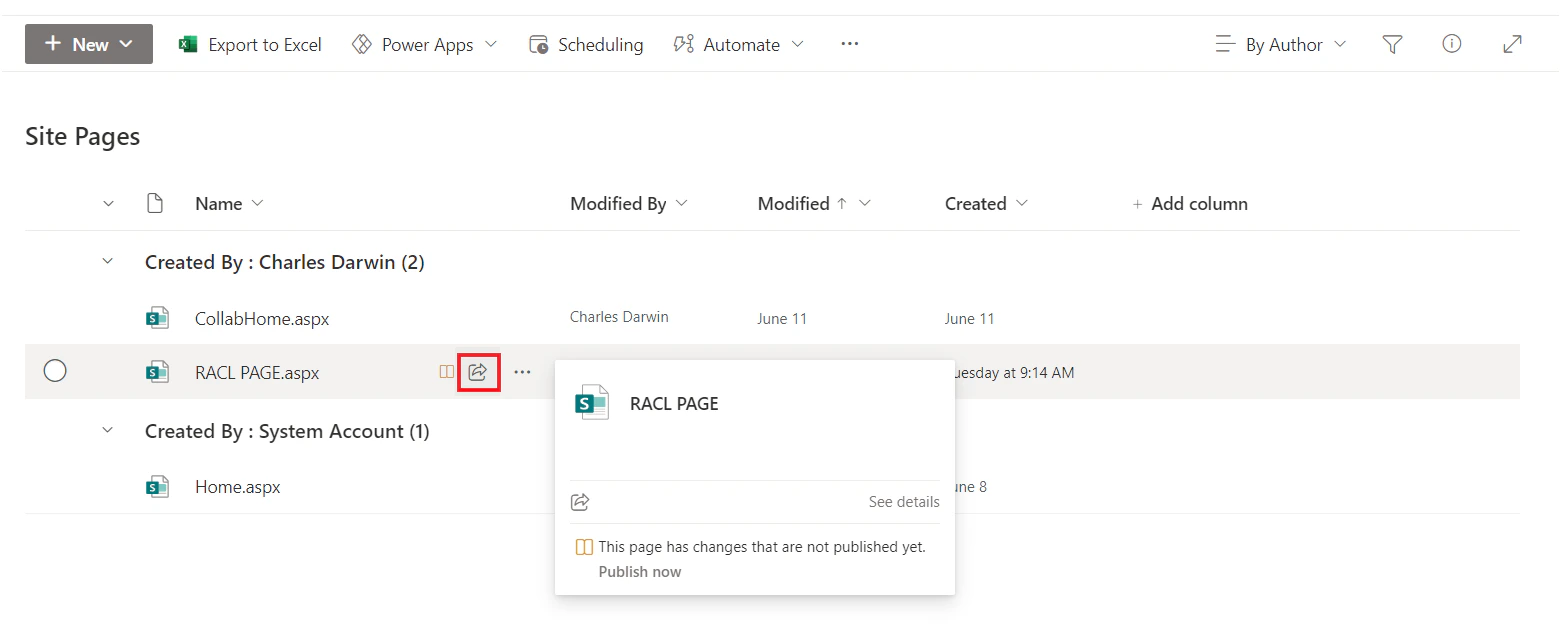
How Search AI Handles File Permissions
- Shared with a specific user — The user is automatically added to the
sourceACLfield during ingestion. - Shared with a user group — The group ID is used to create a Permission Entity that resolves individual users.
- Shared with a specific domain — The domain name is stored as a Permission Entity in
sourceACL. Search AI compares user email domains during answer generation and grants access on a match.